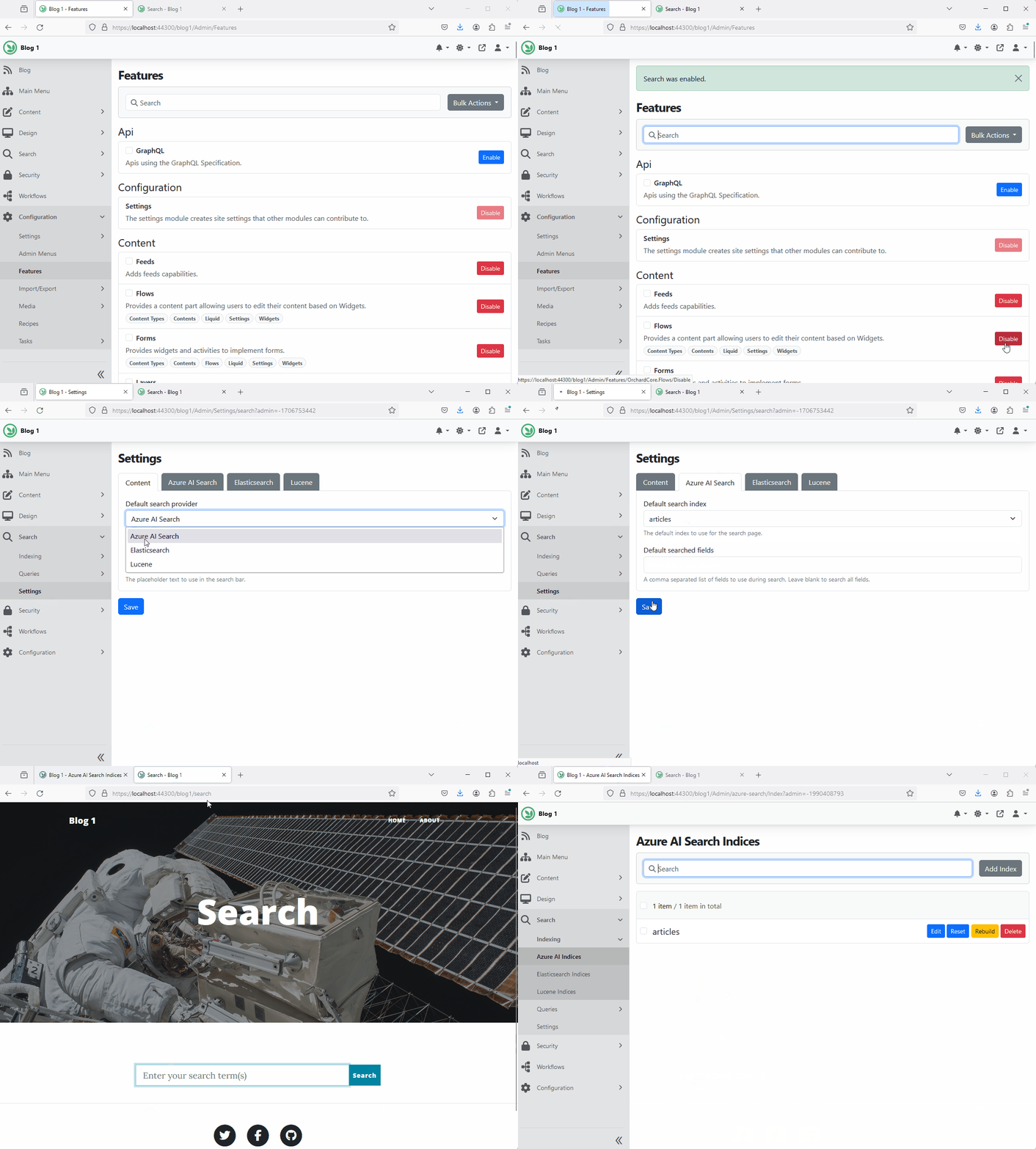
Azure AI Search (OrchardCore.AzureAI)
The Azure AI Search module allows you to manage Azure AI Search indices.
Before enabling the service, you'll need to configure the connection to the service. By default, you can navigate to Settings → Search → Azure AI Search and provide the Azure Search AI service info.
Alternatively, you can configure the Azure Search AI service for all your tenants using one of the configuration providers. For example, you can add the following to the appsettings.json:
{
  "OrchardCore":{
    "OrchardCore_AzureAISearch":{
      "Endpoint":"https://[search service name].search.windows.net",
      "IndexesPrefix":"", // Specify value to prefix all indexes. If using the same instance for production and staging, provide the environment name here to prevent naming conflicts.
      "AuthenticationType":"ApiKey", // Use 'Default' for default authentication, 'ManagedIdentity' for managed-identity authentication, or 'ApiKey' for  key-based authentication.
      "IdentityClientId":null, // If you do not want to use system-identity, optionally, you may specify a client id to authenticate for a user assigned managed identity.
      "DisableUIConfiguration":false, // Enabling this option will globally disable per-tenant UI configuration. This implies that all tenants will utilize the settings specified in the appsettings.
      "Credential":{
        "Key":"the server key goes here"
      }
    }
  }
}
Then navigate to Search > Indexes to add an index.
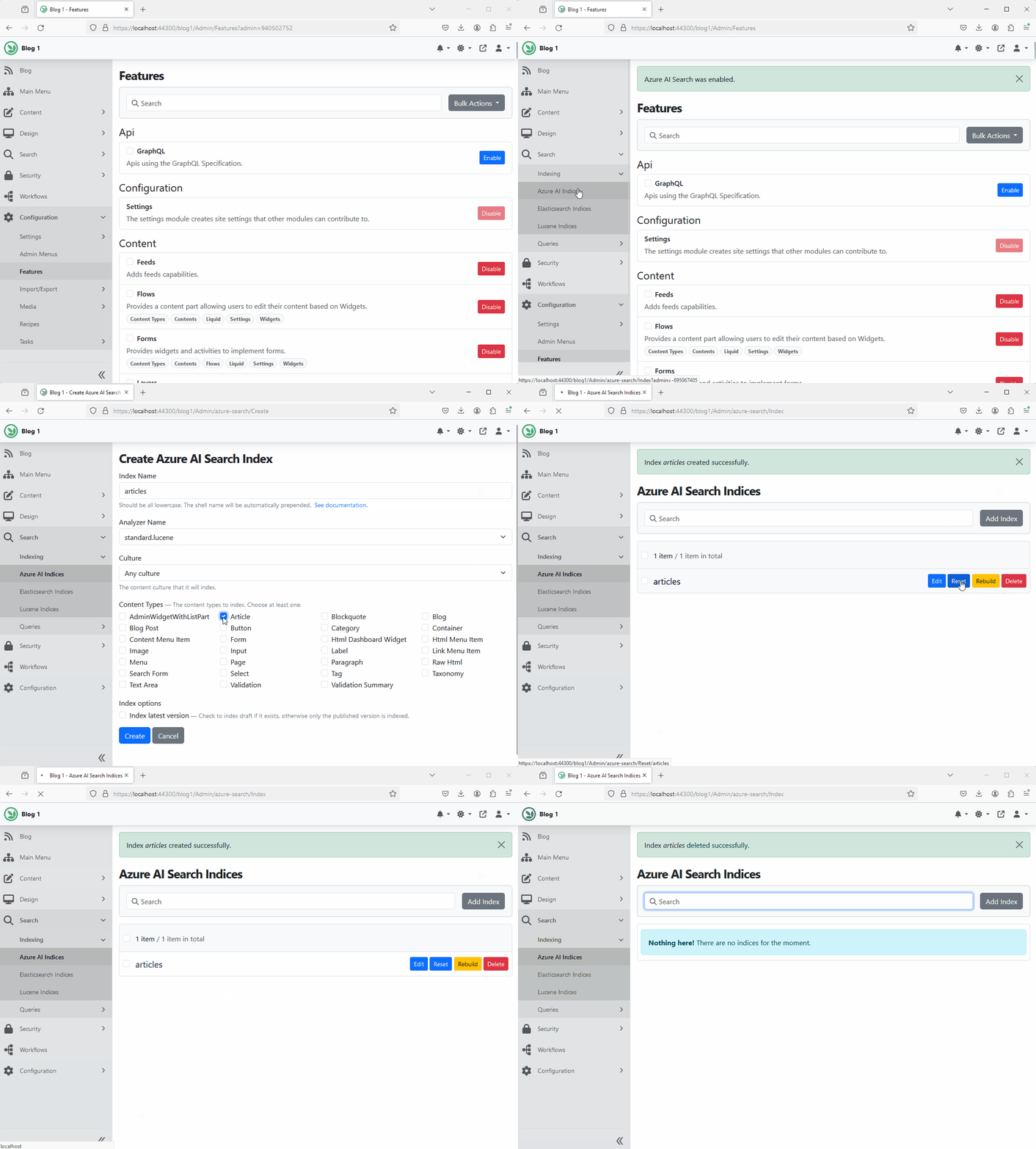
Indexing custom data
The indexing module supports multiple sources for indexing. This allows you to create indexes based on different data sources, such as content items or custom data.
To register a new source, you can add the following code to your Startup.cs file:
services.AddAzureAISearchIndexingSource("CustomSource", o =>
{
    o.DisplayName = S["Custom Source in Provider"];
    o.Description = S["Create a Provider index based on custom source."];
});
Next, you need to implement the IIndexProfileHandler interface. In the CreatingAsync and UpdatingAsync methods, populate or update AzureAISearchIndexMetadata to define the index fields and their types. You may use IndexProfileHandlerBase to simplify your implementation.
If you want the UI to capture custom data related to your source, implement DisplayDriver<IndexEntity>.
Indexing vector fields
If your custom source emits embeddings, add a vector field to AzureAISearchIndexMetadata.IndexMappings and define the corresponding vector search profile in AzureAISearchIndexMetadata.VectorSearch.
using OrchardCore.AzureAI;
using OrchardCore.AzureAI.Models;
using OrchardCore.Entities;
using OrchardCore.Indexing;
using OrchardCore.Indexing.Core.Handlers;
using OrchardCore.Indexing.Models;
using static OrchardCore.Indexing.DocumentIndex;

public sealed class ProductIndexProfileHandler : IndexProfileHandlerBase
{
    public override Task CreatingAsync(CreatingContext<IndexProfile> context)
    {
        Configure(context.Model);
        return Task.CompletedTask;
    }

    public override Task UpdatingAsync(UpdatingContext<IndexProfile> context)
    {
        Configure(context.Model);
        return Task.CompletedTask;
    }

    private static void Configure(IndexProfile index)
    {
        var metadata = index.GetOrCreate<AzureAISearchIndexMetadata>();

        metadata.IndexMappings.Clear();

        metadata.IndexMappings.Add(new AzureAISearchIndexMap("documentId", Types.Text)
        {
            IndexingKey = "DocumentId",
            IsKey = true,
            IsFilterable = true,
            IsSortable = true,
        });

        metadata.IndexMappings.Add(new AzureAISearchIndexMap("title", Types.Text)
        {
            IndexingKey = "Title",
            IsSearchable = true,
        });

        metadata.IndexMappings.Add(new AzureAISearchIndexMap("embedding", Types.Vector)
        {
            AzureFieldKey = "Embedding",
            IsSearchable = true,
            VectorInfo = new AzureAISearchIndexMapVectorInfo
            {
                Dimensions = 1536,
                VectorSearchConfiguration = "products-vector",
            },
        });

        metadata.VectorSearchMappings = new VectorSearchMappings
        {
            Profiles =
            [
                new VectorSearchProfileMap
                {
                    Name = "default",
                    AlgorithmConfigurationName = "products-vector",
                },
            ],
            Algorithms =
            [
                new VectorSearchAlgorithmMap
                {
                    Name = "products-vector",
                    Kind = VectorSearchAlgorithmMap.HnswKind,
                },
            ],
        };

        index.Put(metadata);
    }
}
When building each document, write the embedding with DocumentIndex.Set(...):
documentIndex.Set("embedding", embedding, embedding.Length, DocumentIndexOptions.Store);
If you want a specific vector field to use a different vector search profile, pass the profile name in the entry metadata:
documentIndex.Set(
    "embedding",
    embedding,
    embedding.Length,
    DocumentIndexOptions.Store,
    new Dictionary<string, object>
    {
        ["VectorSearchConfiguration"] = "products-vector",
    });
Note
If a vector field doesn't specify VectorSearchConfiguration, Orchard Core uses the first configured profile from AzureAISearchIndexMetadata.VectorSearchMappings.Profiles. If no profile is configured, it falls back to the built-in default profile and algorithm.
Querying vector fields
The built-in ISearchService and the Site Search UI execute full-text search. To run vector or hybrid queries, use the Azure Search SDK directly through AzureAIClientFactory.
using Azure.Search.Documents;
using Azure.Search.Documents.Models;
using OrchardCore.AzureAI;
using OrchardCore.AzureAI.Services;
using OrchardCore.Indexing;

public sealed class ProductVectorSearchService
{
    private readonly AzureAIClientFactory _clientFactory;
    private readonly IIndexProfileStore _indexProfileStore;

    public ProductVectorSearchService(
        AzureAIClientFactory clientFactory,
        IIndexProfileStore indexProfileStore)
    {
        _clientFactory = clientFactory;
        _indexProfileStore = indexProfileStore;
    }

    public async Task<IReadOnlyList<SearchDocument>> SearchAsync(float[] embedding, CancellationToken cancellationToken)
    {
        var index = await _indexProfileStore.FindByIndexNameAndProviderAsync("products", AzureAISearchConstants.ProviderName)
            ?? throw new InvalidOperationException("The 'products' Azure AI Search index profile doesn't exist.");

        var client = _clientFactory.CreateSearchClient(index.IndexFullName);

        var options = new SearchOptions
        {
            Size = 5,
            Select = { "documentId", "title" },
            VectorSearch = new VectorSearchOptions
            {
                Queries =
                {
                    new VectorizedQuery(embedding)
                    {
                        Fields = { "embedding" },
                        KNearestNeighborsCount = 5,
                    },
                },
            },
        };

        var response = await client.SearchAsync<SearchDocument>("*", options, cancellationToken);
        var documents = new List<SearchDocument>();

        await foreach (var result in response.Value.GetResultsAsync())
        {
            documents.Add(result.Document);
        }

        return documents.AsReadOnly();
    }
}
For hybrid search, keep the VectorSearch section and replace "*" with the full-text query you want to combine with the vector query.
Recipes
Creating Azure AI Search Index Step
The Create Index Step create an Azure AI Search index if one does not already exists. It will also index all the content items starting at the beginning.
{
  "steps":[
    {
      "name":"azureai-index-create",
      "Indices":[
        {
            "Source": "Contents",
            "IndexName": "articles",
            "IndexLatest": false,
            "IndexedContentTypes": [
                "Article"
            ],
            "AnalyzerName":"standard.lucene",
            "Culture": "any"
        },
        {
            "Source": "Contents",
            "IndexName": "blogs",
            "IndexLatest": false,
            "IndexedContentTypes": [
                "Blog"
            ],
            "AnalyzerName":"standard.lucene",
            "Culture": "any"
        }
      ]
    }
  ]
}
Note
It's recommended to use the CreateOrUpdateIndexProfile recipe step instead as the azureai-index-create step is obsolete.
Here is an example of how to create AzureAISearch index profile using the IndexProfile for Content items.
{
  "steps":[
    {
      "name":"CreateOrUpdateIndexProfile",
      "indexes": [
        {
            "Name": "BlogPostsAI",
            "IndexName": "blogposts",
            "ProviderName": "AzureAISearch",
            "Type": "Content",
            "Properties": {
                "ContentIndexMetadata": {
                    "IndexLatest": false,
                    "IndexedContentTypes": ["BlogPosts"],
                    "Culture": "any"
                },
                "AzureAISearchIndexMetadata": {
                    "AnalyzerName": "standard"
                },
                "AzureAISearchDefaultQueryMetadata": {
                    "QueryAnalyzerName": "standard.lucene",
                    "DefaultSearchFields": [
                        "Content__ContentItem__FullText"
                    ]
                }
            }
        }
      ]
    }
  ]
}
Reset Azure AI Search Index Step
The Reset Index Step resets an Azure AI Search index. Restarts the indexing process from the beginning in order to update current content items. It doesn't delete existing entries from the index.
{
  "steps":[
    {
      "name":"azureai-index-reset",
      "Indices":[
        "IndexName1",
        "IndexName2"
      ]
    }
  ]
}
To reset all indices:
{
  "steps":[
    {
      "name":"azureai-index-reset",
      "IncludeAll":true
    }
  ]
}
Note
It's recommended to use the ResetIndex recipe step instead as the azureai-index-reset step is obsolete.
Rebuild Azure AI Search Index Step
The Rebuild Index Step rebuilds an Azure AI Search index. It deletes and recreates the full index content.
{
  "steps":[
    {
      "name":"azureai-index-rebuild",
      "Indices":[
        "IndexName1",
        "IndexName2"
      ]
    }
  ]
}
To rebuild all indices:
{
  "steps":[
    {
      "name":"azureai-index-rebuild",
      "IncludeAll":true
    }
  ]
}
Note
It's recommended to use the RebuildIndex recipe step instead as the azureai-index-rebuild step is obsolete.
Search Module (OrchardCore.Search)
When the Search module is enabled along with Azure AI Search, you'll be able to use run the frontend site search against your Azure AI Search indices.
To configure the frontend site search settings, navigate to Settings >> Search >> Site Search. Select the default index to use.
Using the Search Feature to Perform Full-Text Search
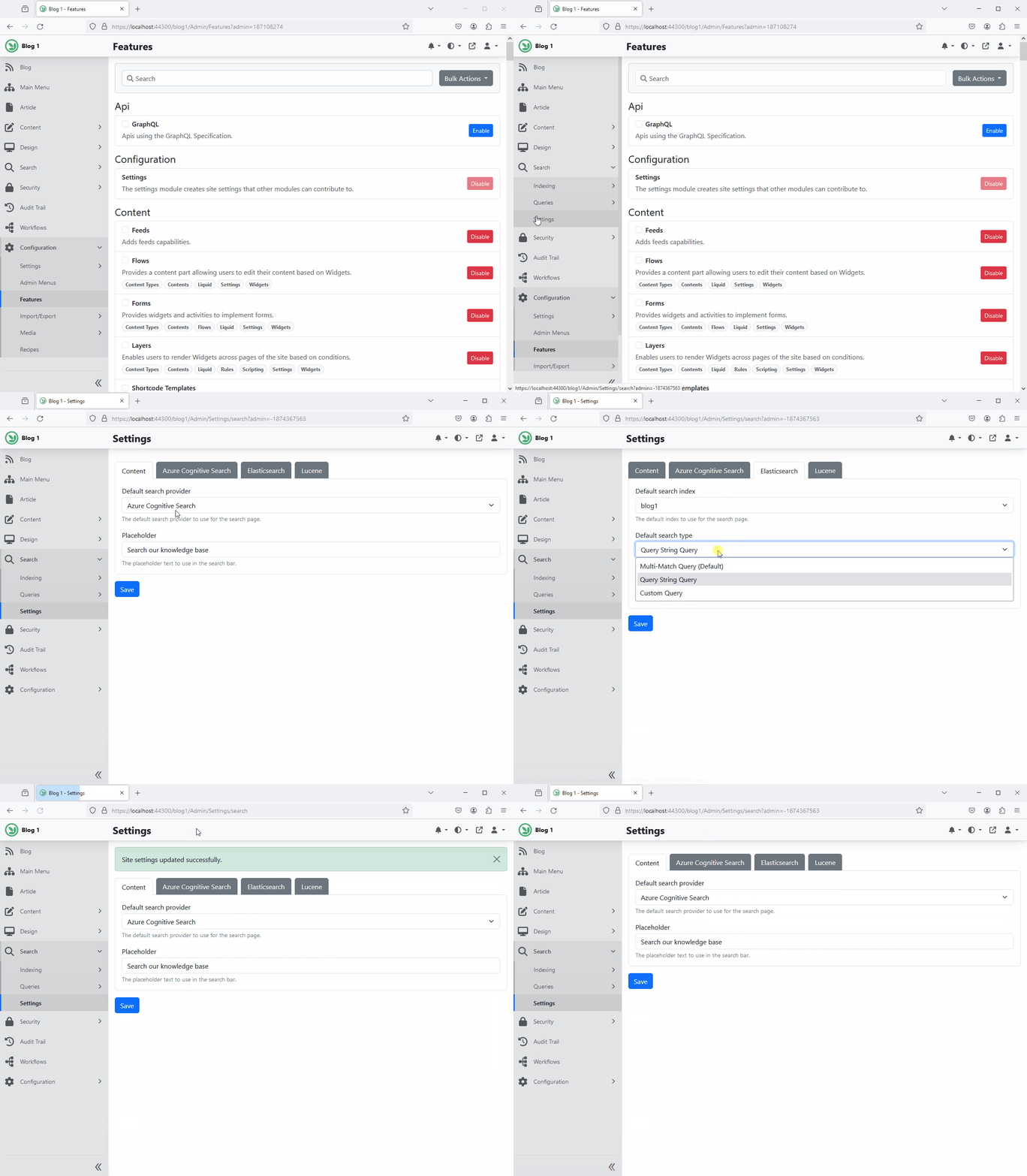
Frontend Search Settings